- About Us
- About Us
- Contact Us
- Contact Us
- Contact Us
- The Team
- Our Story
- Investors
- Partner Center
Choose your country and language
You are currently on

You are currently on
Admin Tasks
Nanosonics AuditPro Clinical Application Representative will be assisting you to set it up during the installation. If you would like to add more departments later, please contact AuditPro Customer Service.
For data aggregation and access to the relevant data on the digital logbook and dashboards, you will need to assign a department to each mobile scanning device, trophon2 and probe.
Register rooms in department (optional)
Go to Settings → Departments → Add Rooms
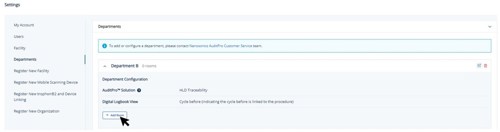
| Assigning room is optional if you would like to locate your devices (probes, trophon2 and mobile scanning devices) at a room level. |
1) Go to the relevant device icon (one at a time) on the left navigation of the page.
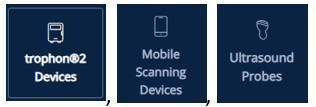
2) Click  to open the device details page.

3) Assign department and/or room from the dropdown list
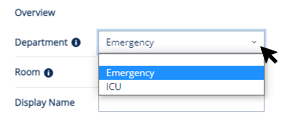
| All procedures logged by a mobile scanning device will be associated with the device department. | |
| When updating mobile scanning device department, wait for about 5 minutes, the department name should be displayed at the top of your mobile application homepage. |
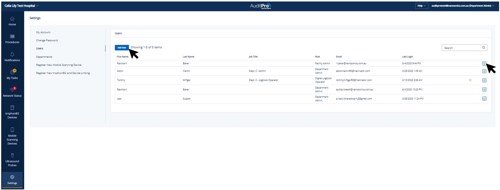
Go to Settings → Users to add a new user or edit details
User roles
Assign the appropriate permissions for each user.
Tasks | Digital Logbook Operator | Department Admin | Facility Admin | BioMed |
View digital logbook |  | |  | |
Modify procedures | | | | |
View device connectivity | | | | |
View and address notifications | | | ||
Manage users | | | ||
Manage devices | | |  | |
Manage facilities | |
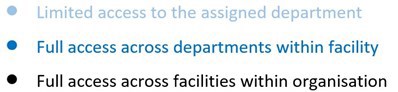
Click  to edit details of the user.
| Please consider removing an inactive user if the last login is more than 90 days. |
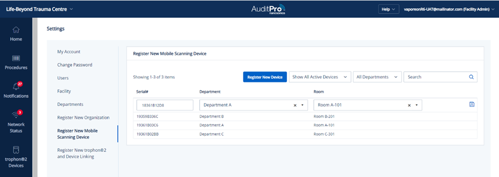
1) Go to Settings → Register New Mobile Scanning Device
2) Enter all mandatory fields and click Save
3) Turn on your mobile scanning device
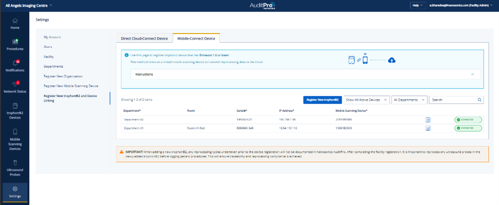
Ensure the trophon2 has been set up as outlined in 4.4 and 5.2. Then:
1) Go to Settings → Register New trophon2 and Device Linking page
2) Click Register New trophon2
3) Enter all mandatory fields
4) Click Connect
a. Mobile-connected trophon2
b. Cloud-connected trophon2
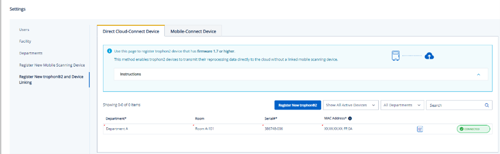
1. Click  to display list of trophon2 devices
2. Open details for the device of interest by clicking 
3. Confirm that the last cycle on trophon2 matches the one in the cloud
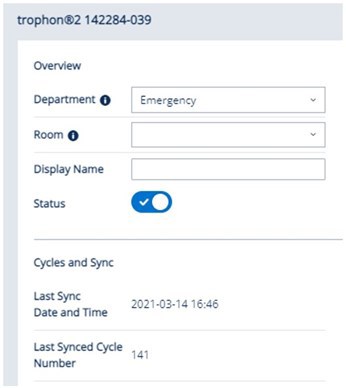
4. Toggle the device status to Inactive 
5. Follow the pop-up instructions.
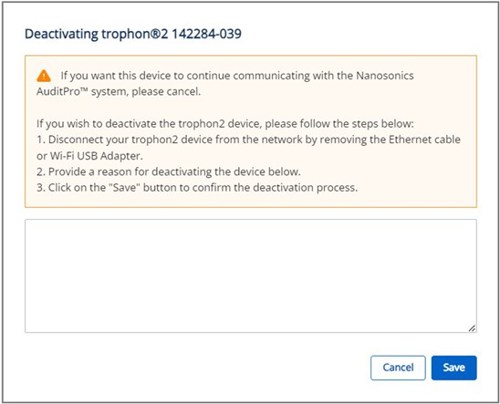
| Deactivating the device will stop AuditPro from raising the offline device notification. |
If you connect the loan device to the same IP Address, AuditPro will automatically register the device. Your action is not required.
If connected to a new IP Address, you need to follow the IP process in 5.2.
 | Set up the loan device in AuditPro prior to running HLD cycles to ensure a complete record. If cycles are run prior to setup, they will not be synced in the cloud and may result in traceability notifications. Please contact AuditPro Customer Service for troubleshooting. |
Repeat the same process as in 10.7.1.
If you connect your returned device to the same IP Address, AuditPro will automatically connect your device. Your action is not required.
If connected to a new IP Address, you need to:
- Update the device IP Address in Settings → Add New trophon2 and Device Linking
- Activate the device by Clicking to display list of trophon2 devices
- Open details of the device of interest by clicking 
- Activate the device to Active status 
 Global Site
 USA
USA Canada (English)
 Canada (French)
 French
 Deutschland
 UK
UK Ireland
 New Zealand
 Japan
Japan